Product screenshots and behavior labels checked on 5 November 2026. Work in a private window and use fake data while testing.
Start with the published page
The studio preview intentionally silences trigger timing and marks controls as a demo. A working preview is not proof that the live page works. Open the published URL in a private window, with extensions disabled if possible, and reproduce the exact visitor path.
1. Confirm the snippet and the saved id
- View the page source (not the visual editor) and search for
data-popuploom. - Confirm the div and the
popuploom.jsscript are both present before</body>. - Compare the id in the div with the id on the saved popup in My popups. A preview id or a deleted id will not mount.
- Confirm the script URL returns the runtime and is not a stale local copy.
If the page uses an older installation snippet from before the domain move, it is still supported. Do not mix two different ids on the same page unless you intend to mount two popups.
2. Check the trigger
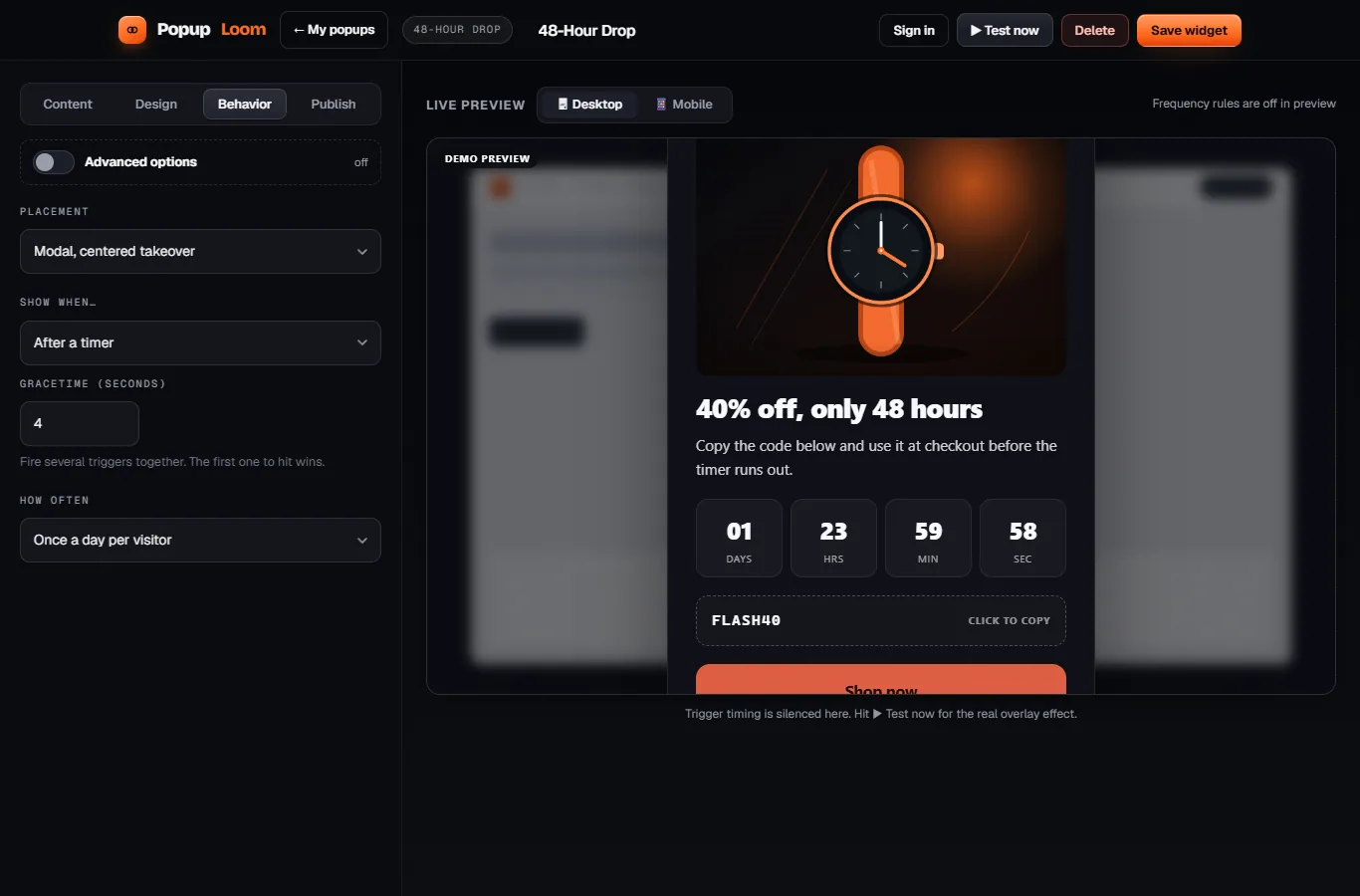
- After a timer: the page must stay open long enough. The timer starts after the runtime initializes.
- Scroll depth: the page must actually scroll. A short page may never reach the percentage.
- Scroll to element: the selector must match a real element. A typo or a selector for content that loads later will not fire.
- Click: the selector must exist at click time, and the visitor must click that element.
- Exit intent: it is a desktop pointer behavior. It is not a reliable touch/mobile trigger; use delay, scroll or click on mobile.
- Page load: check that the script is not blocked or deferred past a point where the visitor leaves.
3. Check page, device and frequency rules
- Page mode is all, include, or exclude. An include pattern that does not match the current path suppresses the popup.
- Desktop and mobile toggles are separate. A template can deliberately disable mobile.
- Frequency is per visitor in this browser: always, once per day, once per week, once ever, or close for 24 hours. Clear the relevant site data or use a fresh profile for testing.
- A visitor who already closed or submitted the popup may not see it again by design.
4. Check the browser console
Open developer tools and reload. Look for:
- a failed request to
popuploom.jsor the widget config API; - a Content Security Policy error that blocks the script, the config connection, the image, or the video frame;
- a JavaScript error from another script on the page that stops execution;
- a 404 for the widget id or a 401/403 from a private API;
- an ad blocker or privacy extension blocking the request.
If the site has a CSP, allowlist the runtime origin in script-src and the config API in connect-src. Do not remove CSP or add blanket * permissions to make a warning disappear.
5. Check the platform and cache
- Paste the code in the page body or footer, not inside an iframe, a rich-text field that escapes HTML, or a metafield rendered as text.
- Purge page, object, CDN and optimization-plugin caches. A cached page may contain an old id or no snippet.
- Some WordPress roles and managed plans strip
<script>tags. See the WordPress guide. - Shopify themes can differ by template and may not run the same footer code in checkout. See the Shopify guide.
- Webflow custom code usually needs a publish and may not run in the Designer canvas. See the Webflow guide.
6. Check the content itself
- An empty title, body, image and controls can produce a visually empty card. Add real content.
- A form with a required field cannot submit until the field is filled. That is not a rendering failure.
- A video URL must be a supported YouTube or Vimeo URL; an arbitrary iframe URL is rejected by the runtime.
- A broken image URL shows an empty media slot, not a popup failure.
- If the popup is configured as a top or bottom bar, check that the page header or another fixed element is not covering it.
7. Verify storage and follow-up separately
If the popup appears but the lead does not, check the lead inbox and the network response for the submit request. A form success message is not proof that a webhook receiver delivered anything. Browser webhooks are best effort; signed server webhooks have a delivery log. Neither sends email, SMS, PDFs or calendar invitations by itself.
When to ask for help
Send the published URL, the saved widget id, the trigger setting, a screenshot of the behavior panel, the browser console text and the approximate time of the test to the contact address. Never send passwords, session tokens, reset links, lead data or webhook secrets.
See also: installation guide · collect and export leads · privacy · terms.